If you’ve cleared your secureboot keys in your UEFI setup and your motherboard firmware hasn’t been updated with the latest secureboot keys from Microsoft you may find your system is unable to boot to windows if you install the default secure boot keys in UEFI setup. The easiest solution to this problem is clear the secure boot keys so SecureBoot goes into setup mode and reinstall the same version of windows into a blank partition as windows setup should automatically install the correct keys.
However reinstalling windows is overkill and unnecessary as you can install the latest keys manually in only a few minutes. Microsoft has made available on github the latest updated secureboot keys and a script to install them. This guide will instruct on how to get and use them.
Before manually installing updated scureboot keys go into your UEFI setup, Make sure secureboot is enabled, and then clear the secureboot keys if you already have keys installed, putting Secure Boot into setup mode. Windows will boot when Secureboot is in setup mode, which is what we need to install updated keys. If Windows wont boot for you when Secure Boot is in Setup mode, this guide is not for you, something else is wrong.
Once in Windows, you need to download the latest edk2-x64-secureboot-binaries.zip file from https://github.com/microsoft/secureboot_objects/releases At the time of writing this guide (January 2026) the latest was v1.6.2 and was the version i used. Note the signed releases do not have the needed file you can only find it in the non signed releases. Extract the zip file into a new directory Once you have that file you need to download a powershell script from the secureboot_objects source tree https://github.com/microsoft/secureboot_objects/blob/v1.6.2/scripts/windows/InstallSecureBootKeys.ps1 Note you can’t download this file directly in a browser you need to view the link and then press the download raw file button or choose the download option in the overflow menu in the top right of the page. Download the file to the directory you extracted the zip file into
Once the powershell script is downloaded you’re now ready to install the keys. Start Powershell as an administrator and change to the directory you extracted the file and downloaded the script to. Run the following poweshell command to enable script execution for this session
Set-ExecutionPolicy -ExecutionPolicy Bypass -Scope ProcessNow you can run the script and install the keys with the following command
.\InstallSecureBootKeys.ps1 MicrosoftAndThirdParty\Firmware\
If everything was done correctly you should see powershell output like the following:
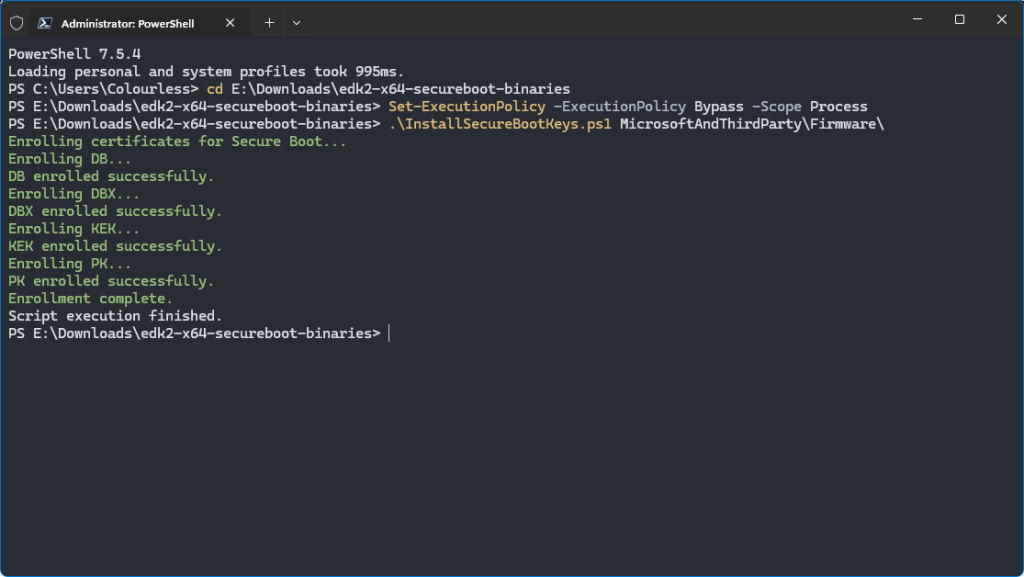
The secure boot keys have been installed and you can now restart your computer. Installing the keys automatically switches SecureBoot into User mode and nothing else needs to be done. Windows should boot normally now with SecureBoot now fully enabled with the latest keys. You should not need to do this again unless you clear the keys as Windows is supposed to keep the Keys updated
Just came for the Mass Effect Mod…. Cool ol’school site you got here! Love to see it 🙂
getting:
PS C:\secureboot\secureboot_objects-1.6.4> .\InstallSecureBootKeys.ps1 MicrosoftAndThirdParty\Firmware\
Enrolling certificates for Secure Boot…
Required file PK.bin is missing. Please download the latest release and try again.
https://github.com/microsoft/secureboot_objects/releases
Script execution finished.
I downloaded: Check-UEFISecureBoot Variables and ran the commands.
no luck.
Any Suggestions?
Windows 10
Really useful info that I couldn’t find anywhere else. However after this process, despite getting the four “enrolled successfully” messages and “Enrollment complete” my PC would not boot with Secure Boot enabled. The keys are visible in the UEFI. Any ideas?
I followed the steps (while BitLocker was disabled). The status still showed in progress. I then ran the scheduled task for updating the certificate and rebooted two more times and it worked. I don’t know if it was the scheduled task or the multiple reboots but, my Acer that was not going to receive a BIOS update although listed in “High Confidence” is now current. Thanks for putting this together. I back tracked and found the information used here buried in the wiki of the site of the secureboot object release github.
Perfect tutorial. Follow exactly what is written in it, and everything will work out.
To download the first file, go to the latest unsigned version and then to assets.
There, under assets, you will find the file:
edk2-x64-secureboot-binaries.zip
Thanks. Used this to get a copy of Win 11 Pro to have Secure Boot. Finicky server board has zero keys at all to restore (Server vendors dont care about SB) so I had to find a way to manually add the keys and this worked out. Now this silly crazy server cos-playing as a Windows PC has secure boot!
Additional powershell commands to set the update flag and run the update in Windows.
This will explicitly trigger the Secure Boot certificate/key update so Windows will use them after you have updated them as listed above.
Set-ItemProperty -Path “HKLM:\SYSTEM\CurrentControlSet\Control\SecureBoot” -Name “AvailableUpdates” -Value 0x40
Start-ScheduledTask -TaskName “\Microsoft\Windows\PI\Secure-Boot-Update”
Wait about 2 minutes and then reboot twice.
You can link to main tree for the script,
https://github.com/microsoft/secureboot_objects/blob/main/scripts/windows/InstallSecureBootKeys.ps1
and for bootable media,
https://github.com/microsoft/secureboot_objects/blob/main/scripts/windows/Make2023BootableMedia.ps1
If secure boot not updating for some reason,check bios settings for a reset option. something like “Erase all Secure Boot Setting”, Disable Secure Boot, install the certs, restart, then re-Enable Secure Boot.
If all fails,check out garlin’s PowerShell scripts. It may be a good idea to revoke old certs (2011) and his scripts has that option and other powershell commands to update keys.
Hello – I followed the instructions exactly as described. It worked. Thank you!
However, I still see the following errors in the registry:
KEKLastUpdateError | 80070002
KEKLastUpdateErrorReason | Firmware_MissingKEKInPackage
Success:
UEFICA2023Status | Updated
Device security:
Secure Boot is enabled, and all required certificate updates have been applied. No further certificate changes are necessary.
Question: Regarding these two errors – is any corrective action required?